Reviews on



Your WordPress site has real value. You have spent time building it. Posts, pages, images, and customer information. All of it matters. Losing everything would hurt.
And it can happen. A plugin update goes wrong. Someone hacks your site. You delete something by mistake. The server crashes. These things occur. If you don’t have a backup, you lose everything permanently. There is no recovery option.
Backups solve this problem. You make a copy of your entire site and store it somewhere safe. When something breaks, you restore the backup, and your site works again. That is the whole idea. The problem is that most people never set up backups until after a disaster happens.
WordPress has a bunch of backup plugins. Some are free. Some cost money. Some take minutes to set up. Some are more involved. You want one that actually works when you need it, not one that looks good on paper but fails when it matters.
We looked at the 10 best WordPress backup plugins that people use successfully. We checked what each one does, what they charge, and how they compare. This helps you pick the right one for your site. Running a blog? Running an online store? There is something here that works for you.
How We Selected These WordPress Backup Plugins
We did not just pick random backup plugins. We looked at what actually works for real WordPress sites. Here is how we decided on these 10.
-
Real World Testing
We tested each plugin on different types of WordPress websites. Small blogs, business websites, and eCommerce stores. We ran backups, restored them, and checked performance impact. A plugin that sounds good on paper might fail in practice. We wanted ones that actually perform.
-
User Reviews and Feedback
We read what people say about these plugins. Not just five-star reviews. We looked at complaints, too. What problems do users encounter? How responsive are developers to issues? Real feedback from real users matters.
-
Feature Comparison
We looked at what each plugin actually offers. Automatic scheduling, storage options, restore speed, and support level. We compared them side by side to see what differentiates them. Some plugins excel at specific tasks. Others are more well-rounded.
-
Pricing and Value
Cost matters, but it is not everything. We checked what you get for your money. Does a paid plugin offer enough extra features to justify the cost? Is a free plugin missing critical features? We tried to find good value across different budgets.
-
Support Quality
We tested support for each plugin. How responsive are they? Do they actually help solve problems? Documentation matters too. Is it clear and helpful? Good support makes a real difference when something goes wrong.
-
Security and Reliability
Backups need to be trustworthy. We checked security practices, update frequency, and company reputation. A plugin that has been around for years with regular updates is more reliable than something brand new and neglected.
-
Hosting Compatibility
Not all plugins work well with every hosting environment. We looked at which plugins work across different hosting providers. Some are better on managed WordPress hosting. Others work anywhere.
10 Best WordPress Backup Plugins (Free and Paid)
Top plugins to protect your WordPress site with reliable automatic backups and easy restoration.
1. UpdraftPlus
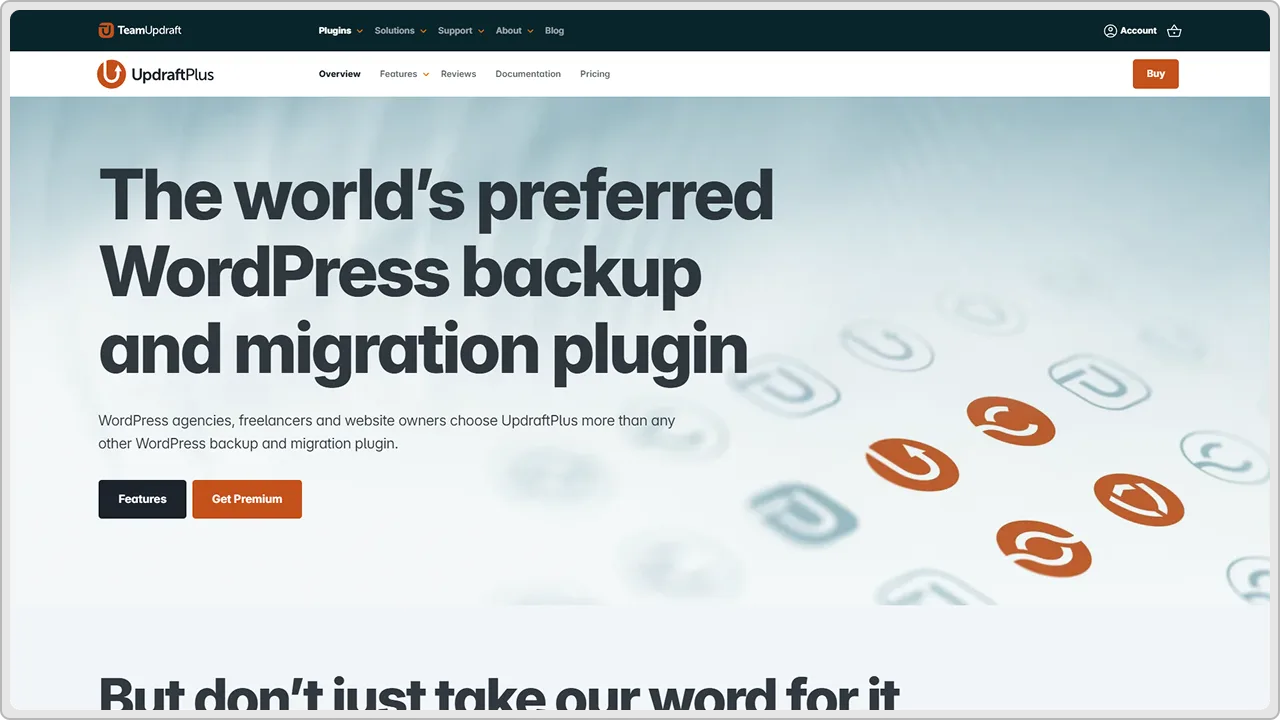
UpdraftPlus is everywhere in the WordPress world. Millions of sites run it. People use it for blogs, stores, and business websites. It has been around for years and keeps getting better. The plugin does one thing well: backs up your site reliably.
Key Features
- Automatic scheduling in the background on your set frequency
- Daily, weekly, or monthly backup options
- Simple restoration with a couple of clicks
- Multiple storage options, including Google Drive, Dropbox, Amazon S3, OneDrive, SFTP, and local storage
- Incremental backups are available in the premium version
- Database and file backups happen together
- Works across different WordPress versions
Pricing
- Free version available
- Premium version starts at $49 per year
| Pros | Cons |
|---|---|
|
|
2. BackWPup
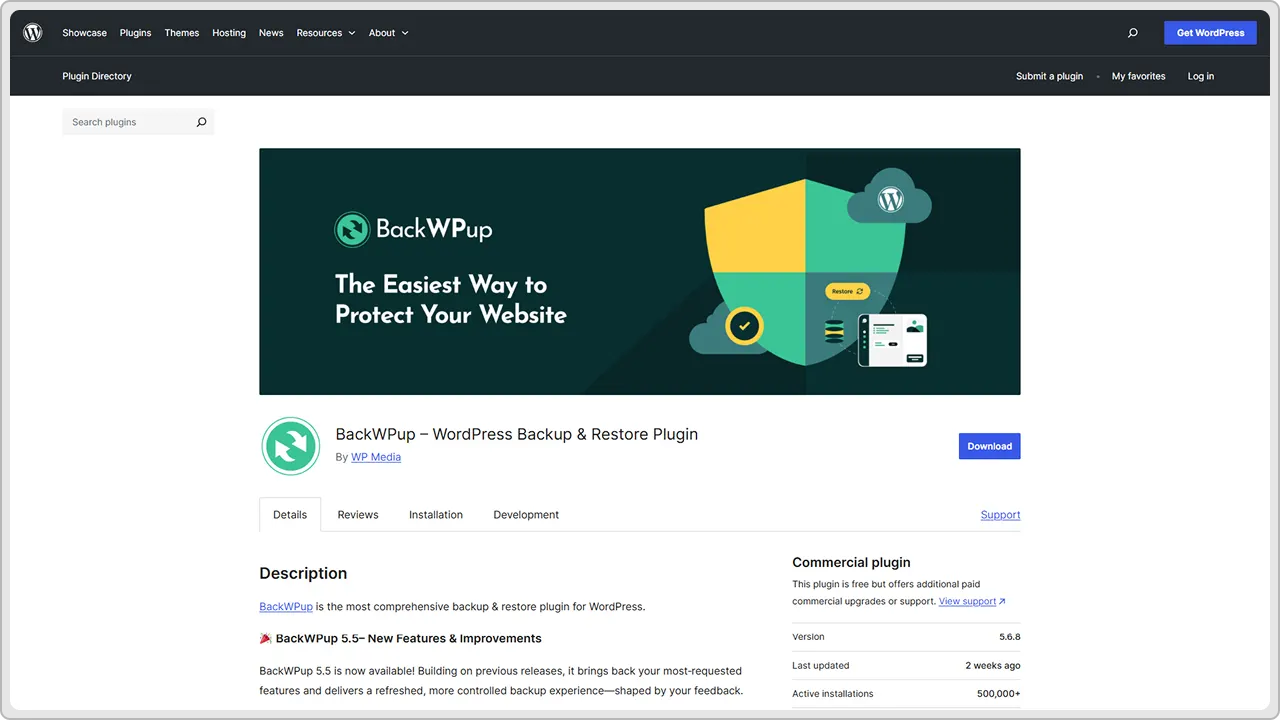
BackWPup is a solid choice that has been around for a long time. It is completely free with no paid version. The plugin handles backups without trying to upsell you. If you want a straightforward backup solution that does not cost anything, BackWPup delivers.
Key Features
- Completely free with no premium version
- Automatic scheduling for backups
- Multiple storage options like Dropbox, Google Drive, Amazon S3, FTP, and local storage
- Database and file backups included
- Backup logs let you see what happened
- Email notifications when backups complete
- Supports external storage for keeping backups off your server
Pricing
- Completely free
- No paid version or upsells
| Pros | Cons |
|---|---|
|
|
3. Duplicator
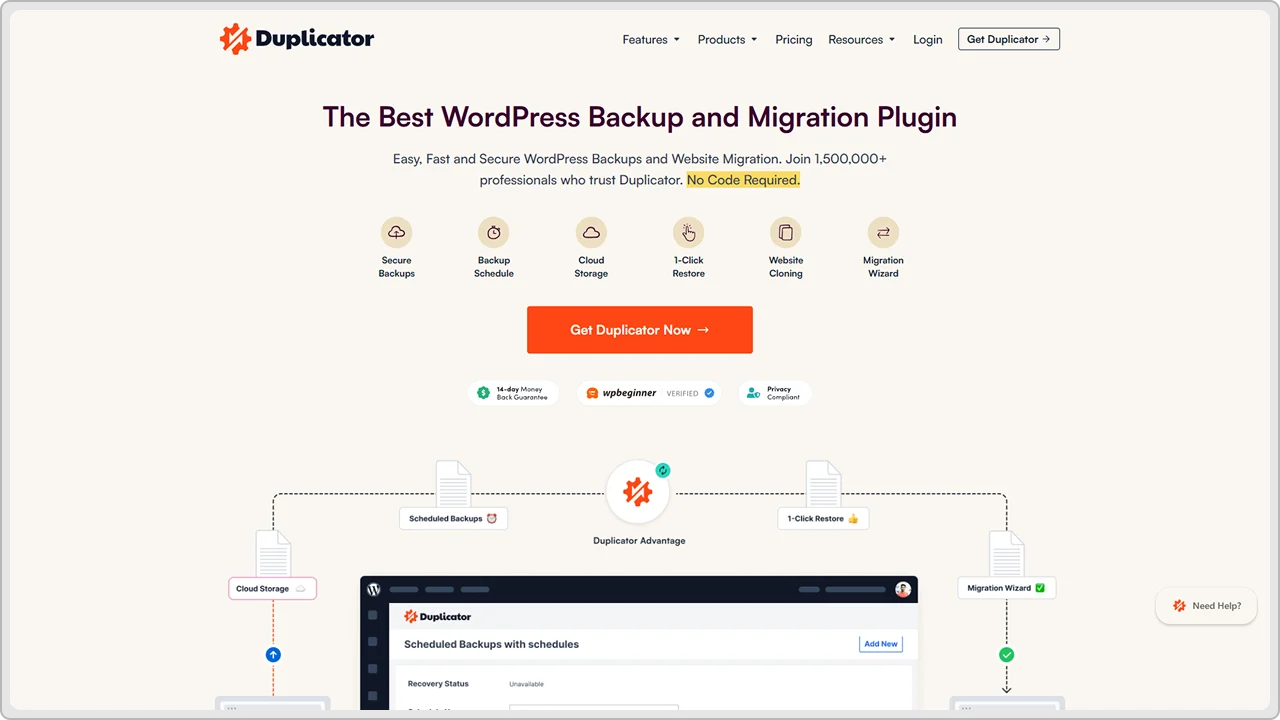
Duplicator takes a different approach to backups. Instead of just backing up your site, it creates a complete package you can use to move or clone your WordPress site. It is useful for backups but really shines when you need to migrate sites or create duplicates.
Key Features
- Creates complete site packages, including database and files
- Backup packages can be stored locally or in cloud storage
- Easy site migration between servers or domains
- Clone your site for testing purposes
- Incremental backups reduce storage needs
- Simple restoration process
- Works with most hosting providers
Pricing
- Free version available
- The professional version starts at $99 per year
| Pros | Cons |
|---|---|
|
|
4. VaultPress
VaultPress is made by Automattic, the company behind WordPress.com. It is a premium backup solution that includes security monitoring and malware scanning. If you want comprehensive protection beyond just backups, VaultPress combines multiple features into one service.
Key Features
- Real-time backups happen automatically
- Unlimited backup storage in the cloud
- One-click restoration for quick recovery
- Security scanning for malware detection
- Downtime monitoring alerts you to issues
- Spam filtering included
- Priority support available
- Works with any WordPress site
Pricing
- Starts at $120 per year
- Higher-tier options are available for more features
- Premium support included
| Pros | Cons |
|---|---|
|
|
5. Jetpack Backup
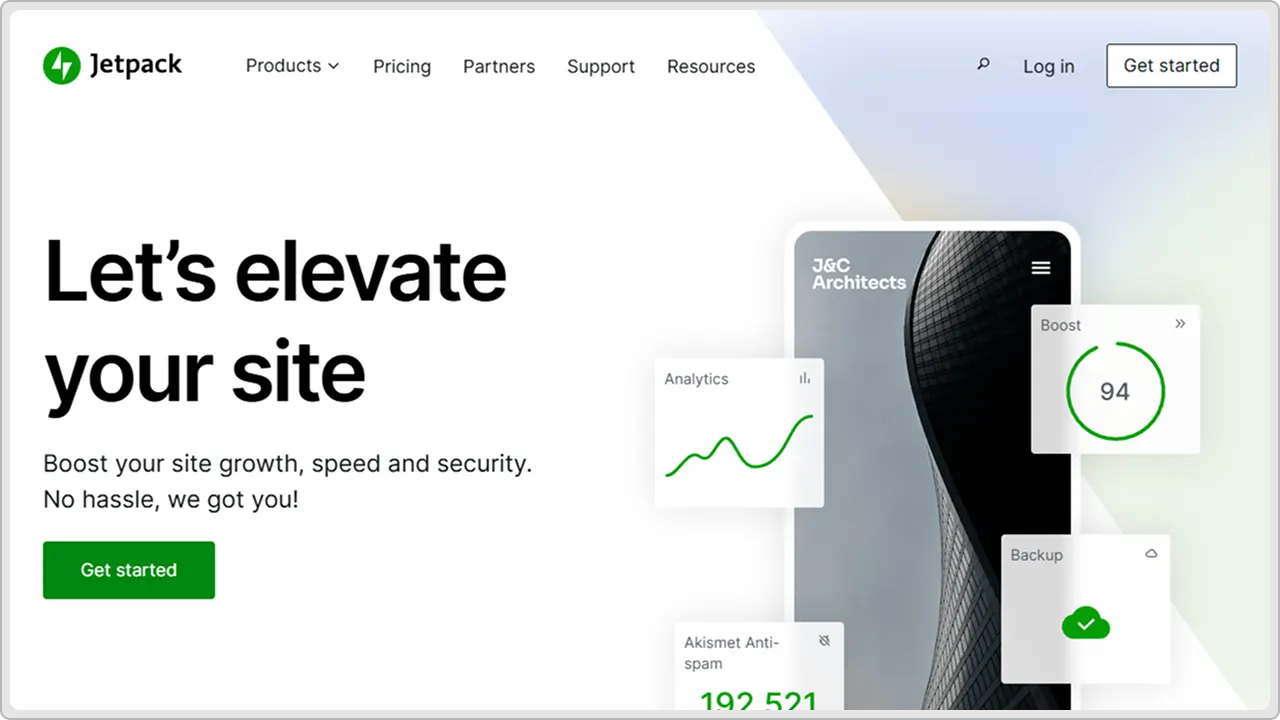
Jetpack Backup is part of the larger Jetpack suite of WordPress tools. It offers reliable backups with automatic scheduling and cloud storage. Jetpack targets site owners who want backups integrated with other WordPress management features like security and performance monitoring.
Key Features
- Automatic daily backups to secure cloud storage
- One-click restoration available
- Unlimited backup versions stored
- Real-time activity log shows site changes
- Integrates with other Jetpack features
- Malware scanning included
- Downtime alerts notify you of problems
- Works with any WordPress site
Pricing
- Jetpack Premium starts at $120 per year
- Includes backup plus other Jetpack features
- Higher tiers available with more features
| Pros | Cons |
|---|---|
|
|
6. All-in-One WP Migration
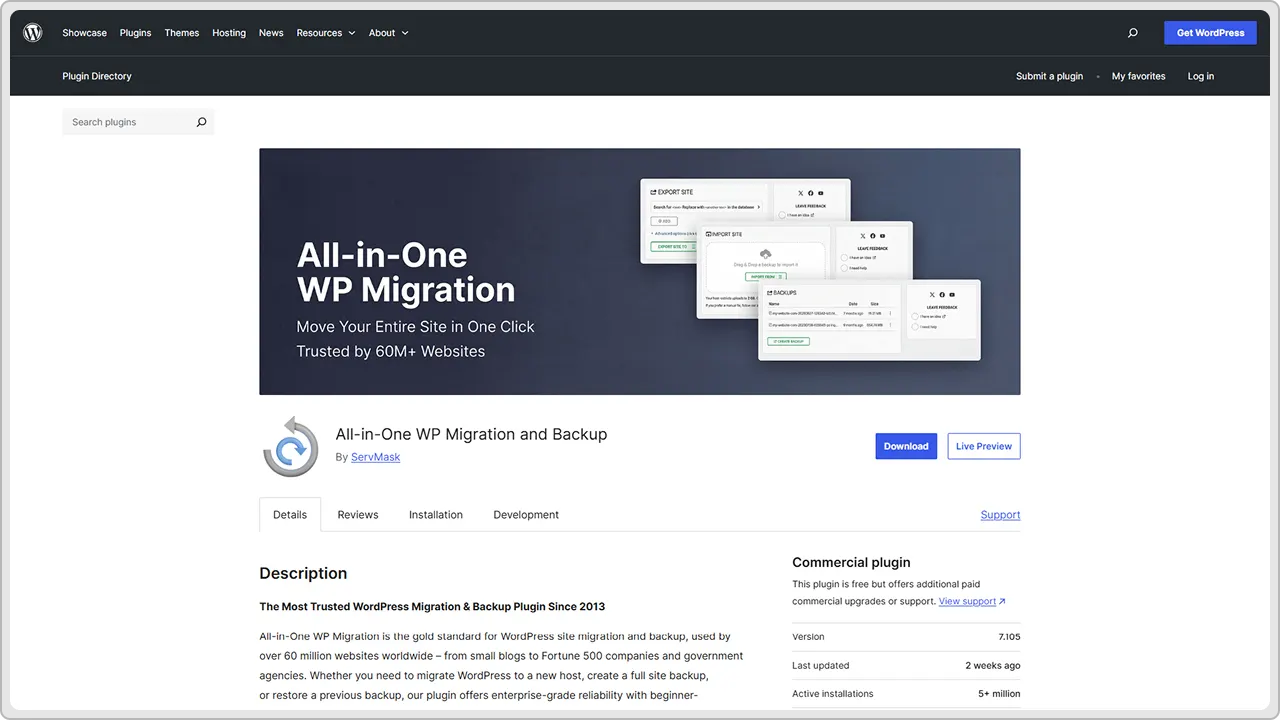
All-in-One WP Migration focuses on simplicity and ease of use. The plugin makes backups and site migration straightforward. It is designed for people who want basic backups without complicated settings or technical knowledge required.
Key Features
- Simple one-click backups of the entire site
- Easy site migration between servers
- Multiple storage options available
- Backup packages stored locally or in the cloud
- No database knowledge required
- Works with any hosting provider
- Fast backup and restore process
- Backup scheduling available
Pricing
- Free version available
- Premium version starts at $99 per year
- Offers extensions for additional features
| Pros | Cons |
|---|---|
|
|
7. BlogVault
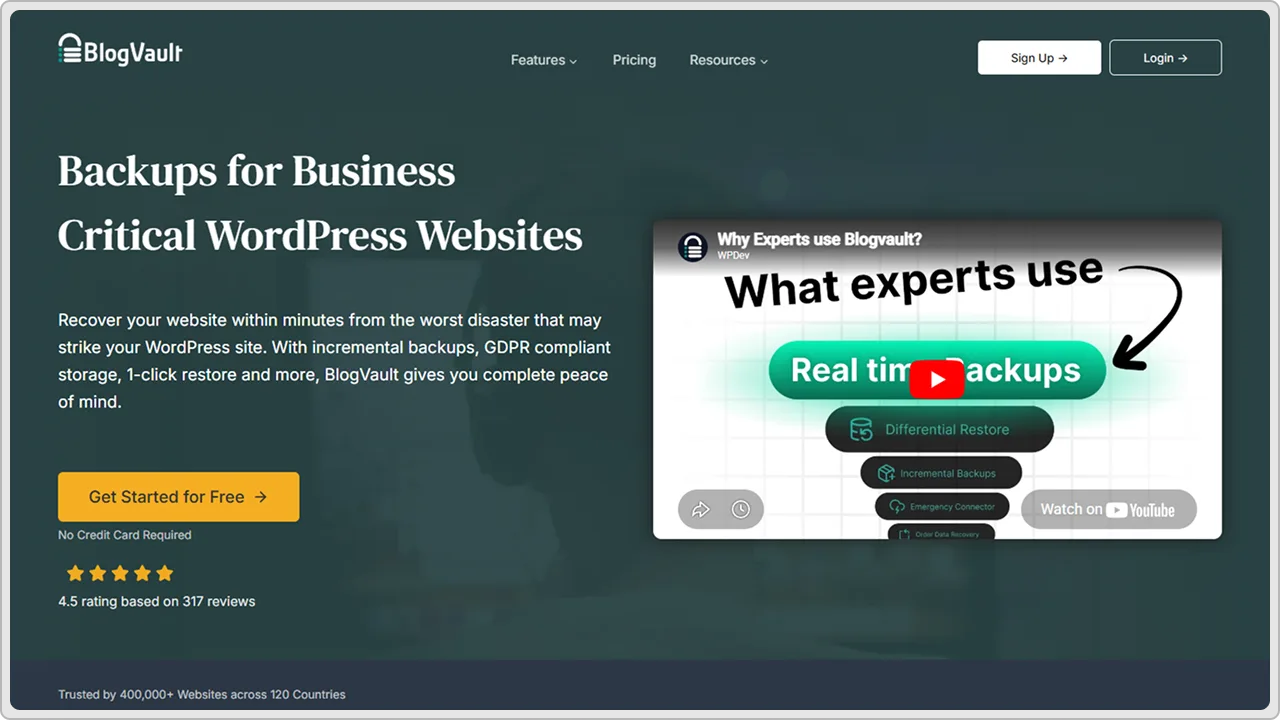
BlogVault is a premium backup service designed specifically for WordPress sites. It handles backups automatically and includes security features. BlogVault targets serious site owners who want professional-grade protection without managing backups themselves.
Key Features
- Automatic incremental backups run hourly
- Unlimited storage in a secure cloud
- One click restoration restores the entire site
- Malware scanning and removal included
- Security hardening features available
- Real-time monitoring of site activity
- Automatic security updates
- Priority support included
Pricing
- Starts at $99 per year for the basic plan
- Higher tiers available with more features
- Includes security and backup together
| Pros | Cons |
|---|---|
|
|
8. ManageWP

ManageWP is a complete WordPress management platform that includes backups as one feature. It lets you manage multiple WordPress sites from one dashboard. If you run several sites, ManageWP provides centralized control, including backups, updates, and security monitoring.
Key Features
- Automated daily backups to cloud storage
- Manage multiple WordPress sites from one dashboard
- One-click restoration available
- Automatic scheduled backup options
- Security scanning and monitoring
- Automatic plugin and theme updates
- Uptime monitoring and alerts
- Backup storage in multiple locations
Pricing
- Free plan available with basic backup features
- Premium plans start at $9.99 per month
- Pricing scales based on the number of sites
| Pros | Cons |
|---|---|
|
|
9. Acronis Cyber Protect
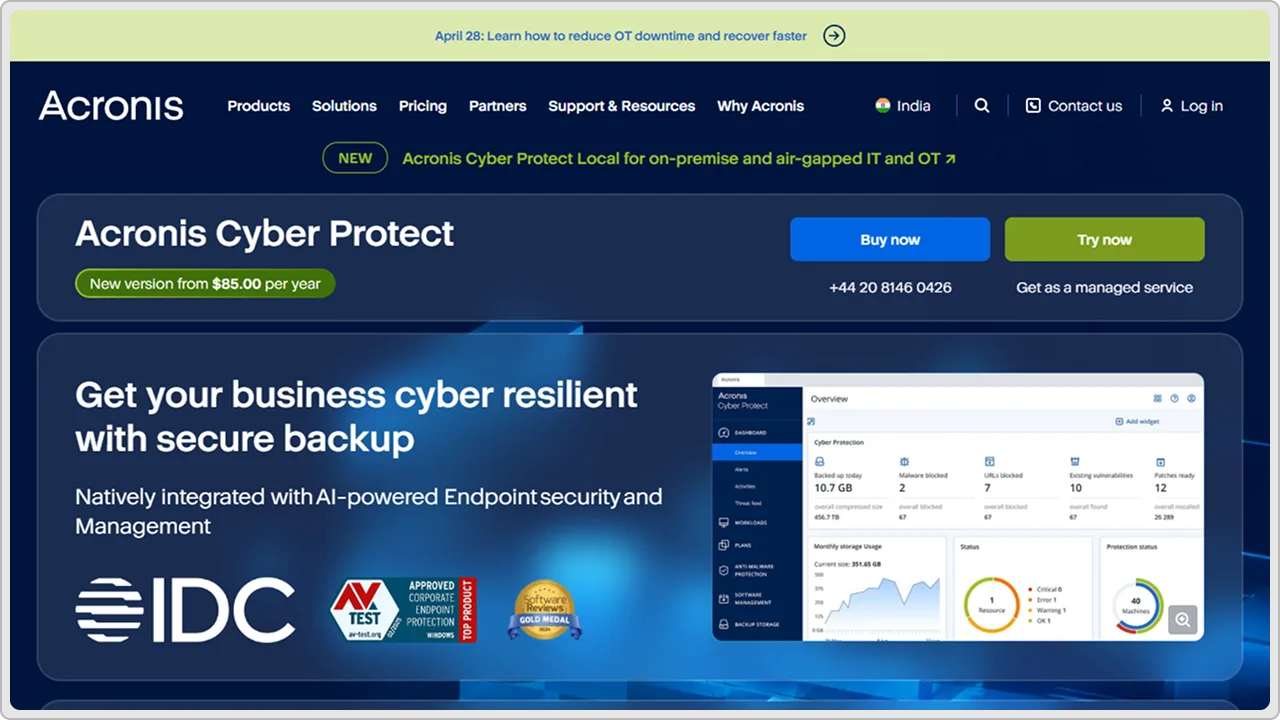
Acronis Cyber Protect is enterprise-level backup and security software adapted for WordPress. It provides comprehensive protection, including backups, malware scanning, and security hardening. Acronis targets serious businesses wanting professional-grade protection for their sites.
Key Features
- Real-time backups with continuous protection
- Unlimited backup versions stored
- Advanced malware and ransomware detection
- One click restoration to any point in time
- Security vulnerability scanning
- Disaster recovery planning tools
- Multi-site management available
- Advanced encryption for data protection
Pricing
- Starts at $299 per year for a single site
- Higher tiers for multiple sites
- Enterprise pricing available for larger deployments
| Pros | Cons |
|---|---|
|
|
10. WP Time Capsule

WP Time Capsule specializes in incremental backups that only save changes to your site. This approach uses less storage and bandwidth compared to full backups. It is designed for site owners who want efficient backups without the overhead of backing up everything repeatedly.
Key Features
- Incremental backups save only changes made
- Automatic scheduling runs in the background
- Multiple storage options available
- Cloud storage keeps backups off your server
- One-click restoration available
- Backup activity logs track all changes
- Works with any WordPress hosting
- Minimal server resource usage
Pricing
- Free version available with basic features
- Premium starts at $99 per year
- Includes incremental backup technology
| Pros | Cons |
|---|---|
|
|
What Makes a Best WordPress Backup Plugin
Not every backup plugin works the same way. Some are solid. Some have issues. You need to know what to look for before you pick one.
-
Automatic Backups
You are not going to manually back up your site every week. It just will not happen. A decent plugin handles this on autopilot. Set it and forget it. Daily, weekly, whatever rhythm makes sense. Manual backups never stick around long enough to matter.
-
Restoring Actually Works
Backups mean nothing if you cannot get them back online. I have seen plugins where restoration takes forever or requires technical knowledge you don’t have. You want something where restoring takes a couple of clicks. That is it.
-
Storage Location
Where do backups live? Off your server is safer. Google Drive, Dropbox, Amazon S3. Any cloud option works. Keeping backups only on your hosting server is risky. If the server dies, backups die with it. Remote storage keeps things protected.
-
Multiple Versions
Does it keep just the last backup or several older ones? Multiple versions are helpful. You can restore to different time periods if needed. One backup only gets you back to yesterday.
-
Speed
Backups should run fast without destroying your site’s performance. Slow backups bog things down. You want something efficient that works in the background.
-
Support When You Need It
Something goes wrong with your backup. Do you have someone to call? Email support? Community helps? Check what support comes with the plugin before you need it.
-
Cost
Free options exist. Paid plugins usually give you more. Think about your budget and what your site actually requires. Do not pay for features you will never use.
How to Choose the Right WordPress Backup Plugin
You have seen ten solid backup plugins. Now you need to pick one that actually fits your situation. Here is how to make that decision.
-
Consider Your Site Type
A personal blog has different needs than an online store. A blog might back up weekly since content changes slowly. An eCommerce site needs daily or even real-time backups because transactions happen constantly. Think about how often your site changes. That determines the backup frequency you need.
-
Think About Your Budget
You have free WordPress backup plugins like UpdraftPlus and BackWPup that work fine. But if your site makes money, paid backups are worth it. Think about what downtime costs you. Professional backup services usually pay for themselves.
-
Evaluate Storage Needs
How big is your site? A small blog with basic content takes little storage. A large store with thousands of products needs more space. Some plugins offer limited free storage. Others provide unlimited cloud storage. Check if the backup size fits your storage options.
-
Check Storage Location
Where are your backups stored? Google Drive and Amazon S3 keep them away from your server. That is safer. If your server dies, those backups still exist somewhere else. Storing backups only on your server is asking for trouble. Everything goes down at once. Look for plugins that back up to the cloud.
-
Assess Your Technical Skills
Know your limits. Some plugins take five minutes to set up. Others need technical knowledge. UpdraftPlus is straightforward. All-in-One WP Migration is easy. Acronis Cyber Protect is complicated. Pick something you can actually work with without getting frustrated.
-
Look at Support Options
Something breaks. Now what? Can you reach someone for help? Is there documentation? Free WordPress plugins usually have basic support. Paid services have real support teams. Think about what level of help you actually need.
-
Test Restoration
Do not just assume backups work. Actually, restore one on a test site. See how it goes. How long does it take? Does it work smoothly? A backup that fails when you need it is useless. Try it out first.
-
Think About Growth
Your site might get bigger. Will the plugin handle that? Some free plugins hit limits fast. They work for small sites but fail when you grow. Pick something that scales with you.
Conclusion
Backups are not optional. Your WordPress site needs them. Everything you built matters, and losing it would be devastating. A good backup plugin protects you from disasters.
You have seen ten solid options. Some are free. Some cost money. Some are simple. Some are complex. The right choice depends on your situation. A hobby blog needs something different than a business site. Think about what you actually need and pick accordingly.
The most important thing is actually having backups set up. It does not matter which plugin you choose if you never configure it. Pick one and get it running. Set it to automatic and forget about it. That is the whole point.
Test your backups too. Restore one to make sure it works. The worst time to discover your backups are broken is when something actually goes wrong. Do a test run now when everything is fine.
Your site took time and effort to build. Protect it with regular backups. Whether you pick UpdraftPlus, Duplicator, or any of the others on this list, just make sure backups happen. That peace of mind is worth everything.
cmsMinds handles setup, monitoring, and recovery so you don’t have to worry about losing your website data.