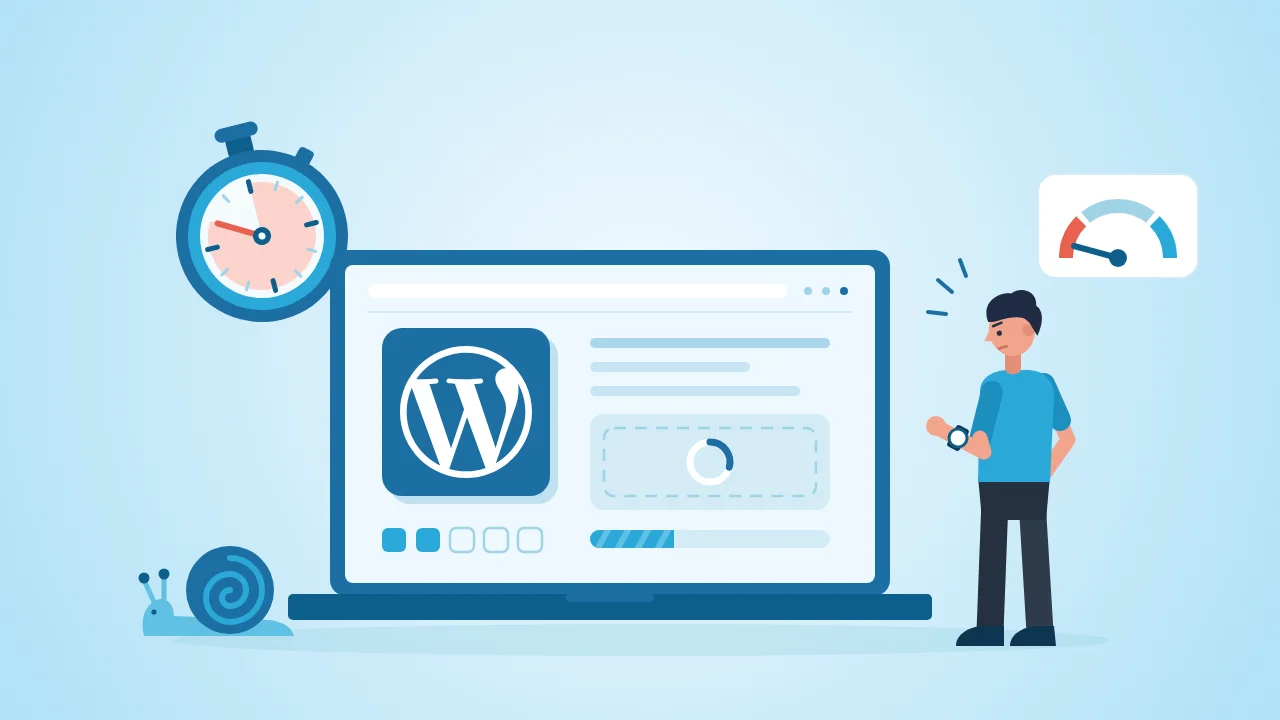
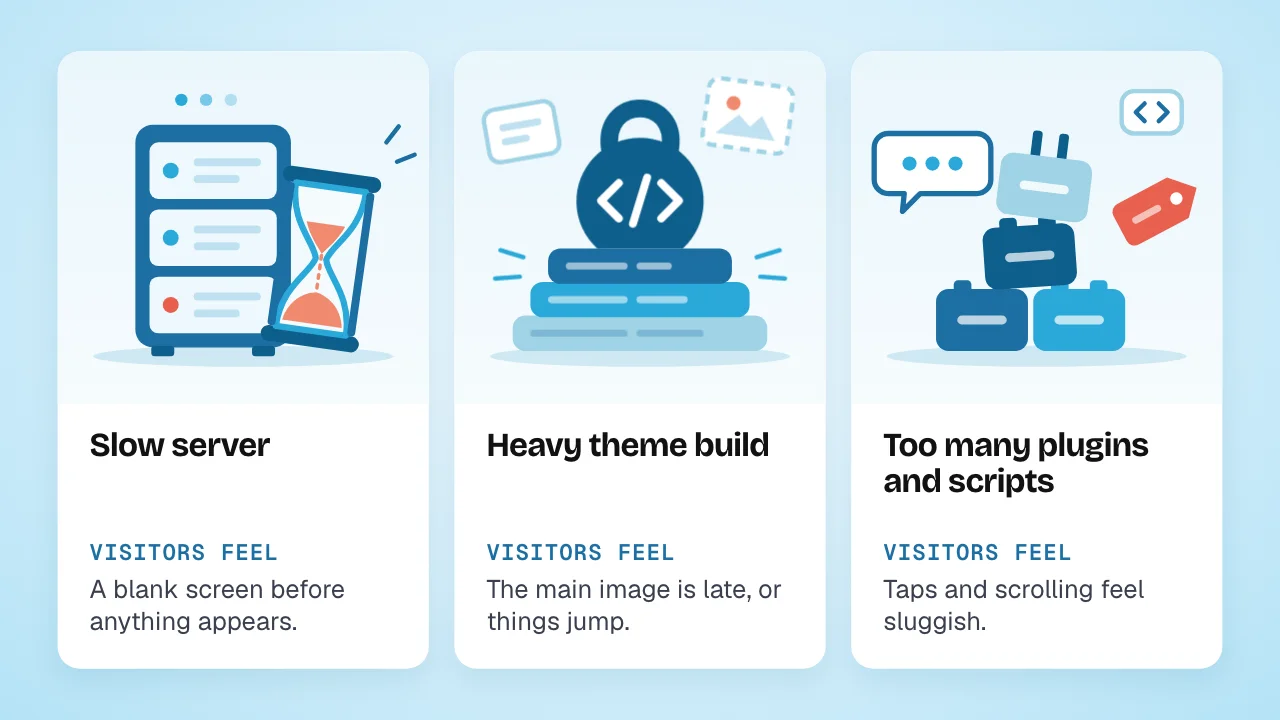
Why is my WordPress site so slow? The answer is rarely WordPress itself. It’s usually one of three things: a slow server, a heavy theme build, or too many plugins and scripts.
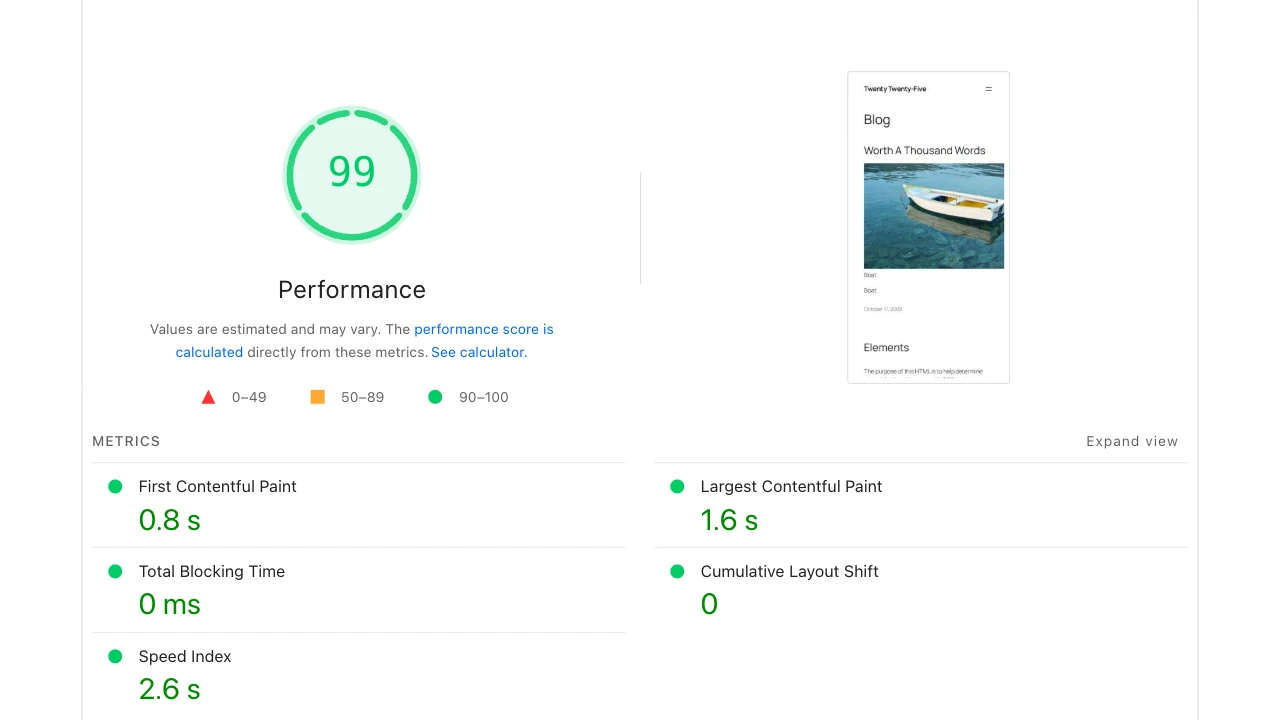
To check, we ran Google’s PageSpeed Insights on a default WordPress site, the official Twenty Twenty-Five demo. It scored 99 out of 100 on mobile (see the PageSpeed Insights mobile report). That means a visitor on a phone sees the main content in under two seconds. Nothing holds the page up, and nothing jumps around while it loads.
Key takeaways
- WordPress itself is fast: the default Twenty Twenty-Five demo scored 99 on mobile in PageSpeed Insights.
- Most slow WordPress sites have one of three causes: a slow server, a heavy theme build, or too many plugins and scripts.
- Check the server first, because nothing appears on screen until it answers.
- Add an all-in-one speed plugin such as NitroPack last, if at all. Installed first, it can hide a slow server or a heavy theme build.
- Still failing on mobile after the 14 short-term fixes? Rebuild the theme with the same design and consolidate your plugins. That long-term fix keeps the site fast as it grows, for visitors and for search and AI visibility.
Most WordPress releases add speed improvements. WordPress 6.3, for example, started loading the main image first. So the slowdown usually comes from your server or from what you’ve added on top of WordPress.
- A slow server. The server has to build and send each page before the browser can show anything. Cheap hosting without page caching leaves visitors looking at a blank screen.
- A heavy theme build. Many themes wrap each section in extra code and load files the page never uses. Page builders such as Elementor or Divi are a common reason.
- Too many plugins and scripts. Every plugin, chat widget and tracking tag adds work. A few dozen collected over the years can slow a site down or take it offline.
We’ve built on WordPress for 15+ years. This guide follows our plan with clients: find the cause, then make the short-term fixes that match it. Rebuild the theme and consolidate plugins only if those fixes aren’t enough.
Why is my WordPress site so slow? What our test shows
Your site is most likely slow to load because of what you’ve added to WordPress. The theme build alone can make a large difference. To measure it, we built our WordPress optimization page three ways on a test site on our own computer. We used default WordPress (Twenty Twenty-Five and its built-in blocks), Elementor (with the Hello Elementor theme) and our own custom block theme.
All three used the same text and images. We served each page as ready-made files, so the server’s speed didn’t affect the result. We loaded each page five times on a simulated phone and report the middle result.
The phone had a 4x slower processor and 150 ms added to every request. We used WordPress 7.1.5, Twenty Twenty-Five 1.5, Elementor 4.4.1 with Hello Elementor 3.5.2, and Chrome 157. The layouts use each tool’s default styling, so they’re close but not identical.
| Measure (mobile, lower is better) | Default WordPress | Elementor | Our custom block theme |
|---|---|---|---|
| Main content appears (LCP) | 0.48 s | 1.20 s | 0.45 s |
| JavaScript | 23 KB (3 files) | 121 KB (12 files) | 7 KB (2 files) |
| Stylesheets that block the page | 1 | 13 | 0 (inlined) |
| Requests | 16 | 36 | 14 |
With the same content, Elementor showed the main content 0.7 seconds later than default WordPress. That’s because a page builder loads its own styling and scripts on every page. The browser has to fetch them before it can show anything.
Default WordPress and our custom theme were about equally fast, because both load only what the page needs. If your site runs on a page builder, fixes 6 to 10 below help. The long-term fix removes the cause.
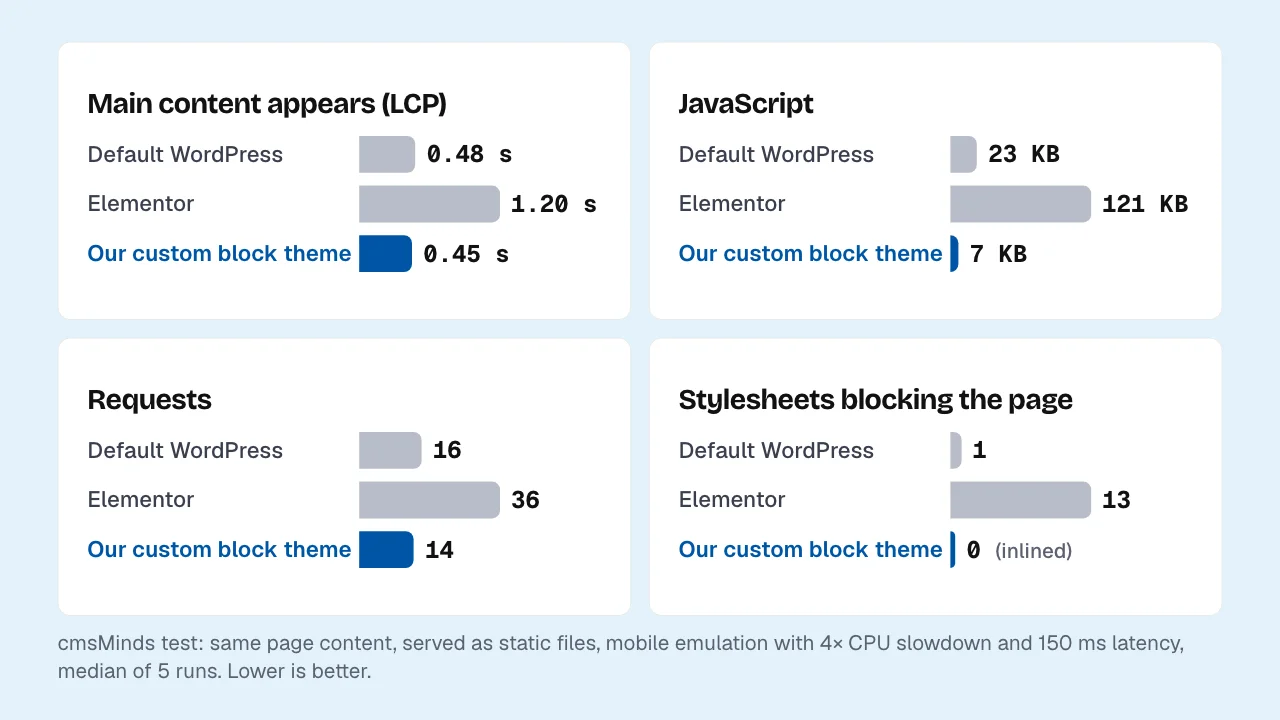
Our test used an older connection type (HTTP/1.1) with added delay, which makes blocking files cost more. On modern hosting, the gap would likely be smaller. Elementor would still load the most JavaScript, though, and a mid-range phone feels that more. Compare the three builds with each other, not with PageSpeed Insights scores.
Whichever cause you have, a slow page loses visitors your marketing worked hard to win. In a Deloitte study for Google, retail spending rose 9.2% when mobile sites loaded just 0.1 seconds faster (Deloitte via web.dev). Each cause leaves different signs, so you can find yours before you spend anything.
How to find the cause
You need Google’s free PageSpeed Insights, a private browser window and your list of plugins.
- Run PageSpeed Insights on mobile for your homepage and for one page that brings in leads or sales.
- Read the top section first. It shows how your pages loaded for real visitors over the last 28 days. Trust it over the score below, which comes from one simulated phone.
- Note which of the three Core Web Vitals fails.
- Open your site logged out in a private window and watch how long the screen stays blank. Logged-in visits often skip the cache.
- Count your plugins and check whether a page builder such as Elementor, Divi or WPBakery builds your pages.
- Save the results for both pages as the baseline you measure every fix against.
Core Web Vitals are Google’s three checks on how fast and stable a page feels to real visitors. LCP is when the main image or headline appears, and good is 2.5 seconds or less. INP is how quickly the page reacts to a tap, and good is 200 milliseconds or less.
CLS is how much the page jumps while it loads, and good is 0.1 or less. A page passes when 75% of visits are good on all three (Google’s Core Web Vitals guide). Now match what you see to a likely cause.
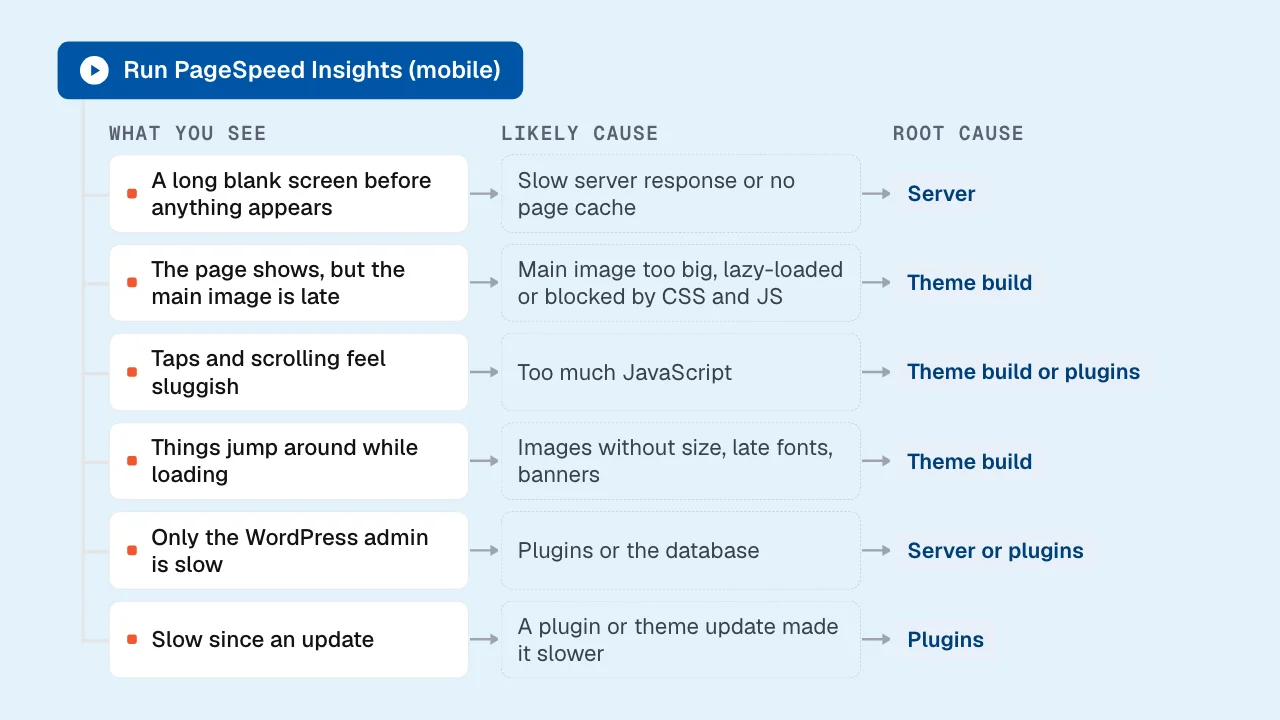
| What you see | Likely cause | Root cause |
|---|---|---|
| Long blank screen, then everything appears | Slow server or no page caching | 1. Slow server |
| The main image or headline arrives late | Oversized main image or heavy theme build | 2. Heavy build |
| Taps and menus feel sluggish | Too much JavaScript | 2. Heavy build or 3. Plugins |
| Text and buttons jump while loading | Images without sizes, web fonts, late banners | 2. Heavy build |
| The site is fine, but wp-admin is slow | Plugins or the database | 1. Slow server or 3. Plugins |
| It got slow right after an update | A plugin or theme update | 3. Plugins |
Expert note
In my first 30 minutes on a slow site, I read the real-visitor data in PageSpeed Insights. Then I time the server response on an uncached, logged-out page.
If the server is slow, I stop there, because nothing else will help until that’s fixed. If it’s fast, I use Query Monitor to see which plugins and queries take the most time, and I check what loads before the main image. Usually the cause is clear before we change anything.
Bharat Gohel, Delivery Head
Short-term fixes: 14 ways to speed up a slow WordPress site
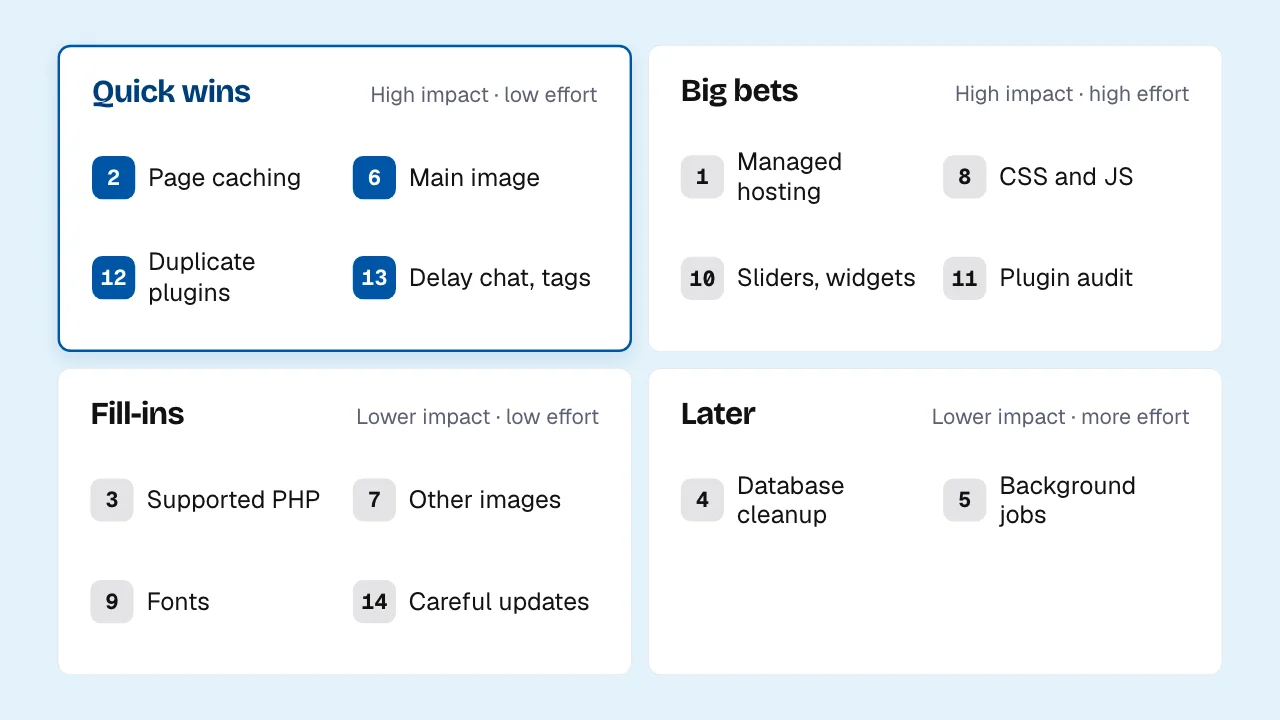
None of these fixes needs a rebuild. A long blank screen points to the server (fixes 1 to 5). Late or jumping content points to the theme build (fixes 6 to 10). Slow taps, or trouble after an update, point to plugins (fixes 11 to 14).
A slow admin usually comes from the database or background jobs (fixes 4 and 5). Work in order, test after each change and stop when the gains get small. Most sites get noticeably faster within days.
If you only have time for a few, start with the four quick wins. They’re one layer of caching (2), the main image (6), duplicate plugins (12) and late-loading scripts (13). New hosting, files that block the page, plugin audits and removing heavy widgets take longer, so plan them next.
1. Check your server, then your hosting
If your pages stay blank for a second or more, the server is the likely cause. PageSpeed Insights shows server speed as TTFB, which is how long your server takes to start answering. Only 44% of sites have a good server response time on mobile (Web Almanac 2025).
Turn on page caching (fix 2) and update PHP (fix 3) before you move hosts. If pages still start slowly after that, your hosting is the limit.
Managed WordPress hosts such as WordPress.com and Pressable keep ready-made copies of your pages. They also include a CDN (content delivery network), which serves your files from locations near your visitors. On other hosts, you can add a CDN separately.
We’re an Automattic Pro Partner, so we work with both. If you sign up through these two links, we may earn a commission.
Cause: slow server · Effort: high · Impact: high · Developer or your host’s migration team
2. Use one layer of page caching
Page caching means the server builds a page once and gives later visitors the stored copy. Check whether your host already does this. Ours does, so our site has no caching plugin. If yours doesn’t, add one plugin, and use our guide to WordPress caching plugins to choose it.
Cause: slow server · Effort: low · Impact: high · DIY
3. Run a supported PHP version
PHP is the language WordPress runs on. Newer versions are faster and still get security fixes. Find your version under Tools › Site Health, and ask your host to upgrade it. Try it first on a staging copy (a private copy of your site for testing), because old plugins can break.
Cause: slow server · Effort: low · Impact: medium · DIY with a staging test
4. Clean up the database
If the whole site is slow and the admin is worst, the database may be cluttered. Old revisions, temporary plugin data and settings left by deleted plugins pile up. Some of it loads on every page view. Take a backup first, then limit revisions and clear out the leftovers.
Online stores and membership sites also benefit from object caching. It keeps the answers to common database questions in fast memory. Your host can usually turn on a tool such as Redis for you.
Cause: slow server · Effort: medium · Impact: low to medium · Developer recommended
5. Calm the background jobs
Background jobs are often why a WordPress admin is so slow. Admin pages are never cached, so scheduled tasks, daytime backups and Heartbeat add to every click. Heartbeat is a built-in WordPress feature that checks in with the server every 15 to 60 seconds. A developer can run scheduled tasks from the server, move backups to the night and slow Heartbeat down.
Bad bots and aggressive crawlers can also keep your server busy with requests no visitor made. A firewall or your host can block them.
Cause: slow server · Effort: medium · Impact: low for visitors, high for editors · Developer
6. Fix the main image
If the page appears but the main content arrives late, start with the main image. It’s usually what LCP measures. Size it for the screen and save it as WebP, a smaller image format. Don’t lazy-load it, because lazy-loading tells the browser to hold an image back until later.
Cause: heavy theme build · Effort: low · Impact: high · DIY for size and format, developer for the code
7. Compress every image and give it a width and height
Compress the other images on the page too. An image optimization plugin can do this for new and existing images.
When an image has no set size, the browser can’t save space for it, so the text jumps when it arrives. Images added through page builders and custom code are the usual ones to check.
Cause: heavy theme build · Effort: low · Impact: medium · DIY for compression, developer for sizes
8. Stop CSS and JavaScript from blocking the page
Some style (CSS) and script (JavaScript) files must download before the browser shows anything. A developer can load only the CSS each page needs and hold JavaScript back until the page appears. Holding back the wrong script can break a menu or form, so this needs careful testing.
Cause: heavy theme build · Effort: high · Impact: high · Developer
9. Use fewer fonts and host them yourself
Each font family and weight is another download. In our experience, most brands need two families at most, in a few weights. Hosting them on your own server saves a trip to an outside service.
Cause: heavy theme build · Effort: low · Impact: medium · Developer
10. Remove sliders, heavy animations and unused widgets
Each of these adds code to every page. On our own site, we swapped an animation library for about 4 KB of plain JavaScript. That saved about 27 KB per page.
Cause: heavy theme build · Effort: high · Impact: high · You decide what goes, a developer removes it cleanly
11. Find the plugins that cost the most
What each plugin does matters more than how many you have. One badly built plugin can slow every page. Query Monitor, a free plugin, shows which ones take the most time on each page.
Online stores feel this most, because cart and checkout pages can’t be cached. That’s why timing each plugin is one of the first things we check on custom WooCommerce stores.
Remove the heavy plugins you don’t need, and replace the ones you keep with lighter plugins that do the same job. If key features depend on dozens of plugins, the long-term fix below consolidates them into focused custom code.
Cause: too many plugins and scripts · Effort: high · Impact: high · Developer
12. Remove duplicate plugins
Two caching plugins, or two optimization plugins doing the same job, get in each other’s way and can break a site. Keep one tool for each job.
Cause: too many plugins and scripts · Effort: low · Impact: high · DIY
13. Load chat, embeds and tracking after the page
Chat widgets, video embeds and tracking tags often load before your content. Set them to load after it, and delete tags you no longer use. Our own speed dipped after launch when we moved tracking tags to the top of the page. Loading them later fixed it.
Cause: too many plugins and scripts · Effort: low · Impact: high · DIY in your tag manager, or a developer
14. Update one thing at a time, on staging first
If your site slowed down suddenly, check what you updated recently. Update one plugin or theme at a time on staging, test it, then update the live site. If you’d rather not do this every month, WordPress maintenance covers it.
Cause: too many plugins and scripts · Effort: low · Impact: medium · DIY with staging, or a maintenance plan
Common mistake
Many owners install a speed plugin such as NitroPack or WP Rocket first, and the score jumps overnight. If the real problem is the server or the theme build, the plugin only covers it up. Visitors on pages it doesn’t cache still wait.
Make the fixes above before you add one. This is different from the single caching plugin in fix 2, which you only need if your host doesn’t cache.
Use this list to track your progress.
- A fast server response, with page caching and a CDN
- One layer of page caching
- A supported PHP version
- A clean database, with object caching for stores and membership sites
- Background jobs out of busy hours, bad bots blocked
- Main image sized, in WebP, not lazy-loaded
- Every image compressed, with a width and height
- No CSS blocking the page, JavaScript held back
- Fewer fonts, hosted yourself
- Sliders and unused widgets removed
- Expensive plugins found with Query Monitor
- No duplicate plugins
- Chat, embeds and tracking loaded last
- Updates one at a time, on staging
You can also hand the whole list to us. Our WordPress speed optimization service starts by measuring your site and reporting the cause. Then we make the fixes on staging and show you the before and after.
Want us to find what’s slowing your site?
We’ll measure your site, find the cause and give you a fixed-price plan for the fixes.
Long-term fix: rebuild the theme and consolidate plugins
If your site still fails on mobile after all 14 fixes, the limit is usually the theme build, the plugins, or both. The long-term fix rebuilds the theme and replaces overlapping plugins with focused custom code. Visitors keep the same design, content and URLs.
This fix lasts longer than the short-term ones, which tend to slip as you add plugins and content. Clean code, fewer plugins and stable templates keep the site fast as it grows. They also make your pages easier for Google and AI tools to read, with real headings, clean code and structured data.
What rebuilding the theme involves
A custom WordPress development team replaces the old theme and page builder with a custom theme. Your pages are built from custom blocks, which are page sections made for your content. Features that belong to the design move into the theme. Your business rules move into focused custom code (more on that below).
We write speed limits into the build, and your team can edit pages without breaking the layout.
- Discover. We review your current site, analytics and goals, and list every page, form, feature and URL.
- Strategy. We decide what to keep, rework or rebuild, and which plugins to keep, merge or replace. We map every URL for SEO and agree the scope, timeline and a fixed price.
- Build. We rebuild your existing design as a custom theme with custom blocks, on staging. We move plugin features into focused custom code and share progress as we go.
- Launch. We test every page, form and redirect across devices and browsers, then launch after your sign-off.
- Support. We monitor rankings and speed after launch and fix anything that comes up.
A new custom theme for an existing design typically takes 6 to 10 weeks, depending on the number of page templates. You get the timeline with the fixed written estimate. These are the same five stages as our WordPress redesign process, except your current design stays.
From our projects
Bowlus, a maker of luxury travel trailers, came to us with a site that a speed plugin was propping up. It ran an outdated ThemeFreesia child theme with SiteOrigin Page Builder, PHP 7.4 and more than 50 plugins. NitroPack hid how slow it was, but pages it didn’t cache showed the problems underneath.
We recommended and carried out a full redesign and rebuild on WordPress blocks. The main content now appears in 1.3 seconds, and nothing jumps while the page loads. After the rebuild and redesign together, conversions rose 24%. Read the Bowlus case study.
We took the same approach with our own site. It runs on a custom block theme we built. Our homepage passes Core Web Vitals for real mobile visitors (see the report).
Consolidate plugins into focused custom code
Many slow sites run dozens of plugins. Each handles one piece of the business, such as pricing rules, product options or a link to another system. The long-term fix replaces that patchwork with code written for your site.
- Audit. On a staging copy, list every plugin and what it actually does on your site.
- Remove duplicates. Where two plugins do the same job, keep one, or neither if the feature is no longer used.
- Consolidate. Move the scattered features and business rules into one focused custom plugin. Features that are part of the design go into the theme instead.
- Document. Write down what the custom code does, so your team and any future developer can maintain it.
This is the work of custom WordPress plugin development. You end up with fewer plugins to update, less code on every page and features that no longer clash with each other.
From our projects
Royal Products, one of our clients, came to us with this problem. Its 3,000-product WooCommerce store ran 86 plugins and about 6,000 lines of overlapping custom code. In one day, it went down 98 times.
We audited every plugin on a staging copy, matching server logs to plugin activity to find the ones behind the outages. Then we removed the duplicates and moved scattered features into focused custom code. We also rewrote the custom PHP, from about 6,000 lines to about 1,000.
The outages stopped, and active plugins went from 86 to 35. Read the Royal Products case study.
Short-term fixes or a rebuild: how to decide
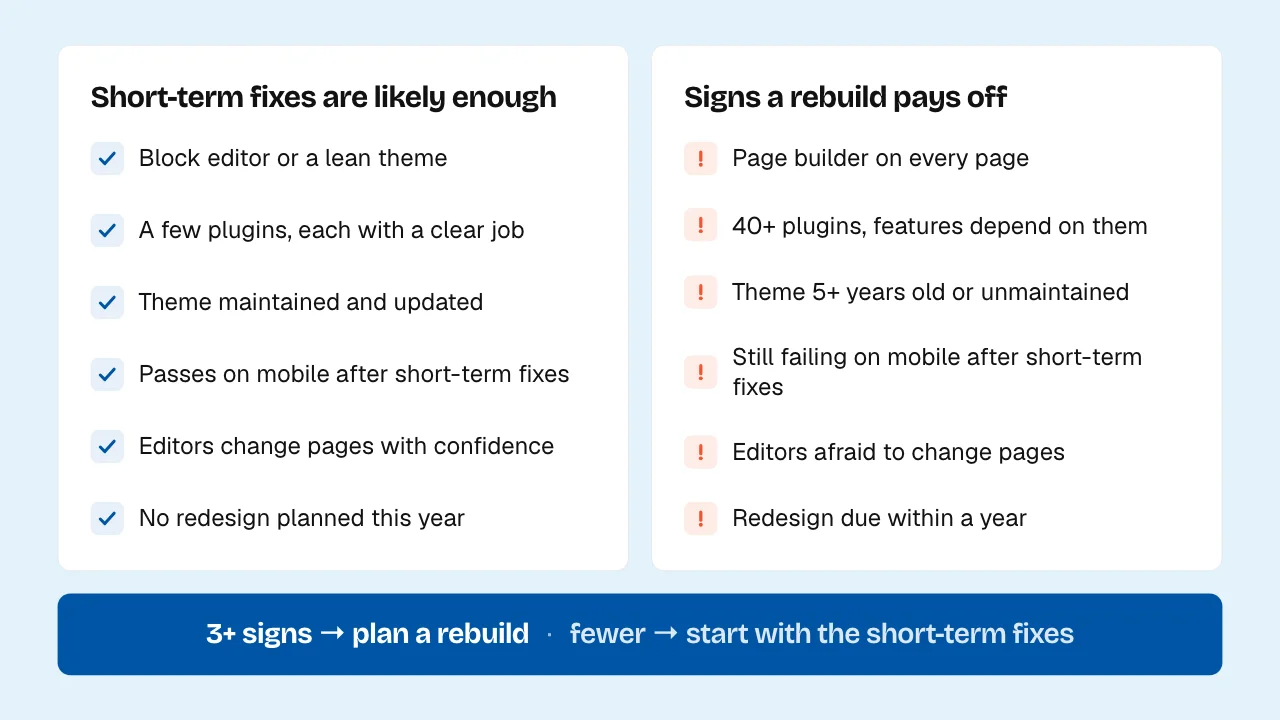
If your site shows three or more signs in the right-hand column below, plan a rebuild. Short-term fixes stop working when the theme build adds far more code than the page needs. They also stop working when key features depend on dozens of plugins. For a site that brings in leads or sales, that’s when rebuilding the theme is usually the better investment.
| Short-term fixes are likely enough | A rebuild pays off |
|---|---|
| Block editor or a lean theme | A page builder on every page |
| Under 40 simple plugins | 40+ plugins that features depend on |
| Current, maintained theme | Theme 5+ years old or unmaintained |
| Passing on mobile after the fixes | Still failing on mobile after the fixes |
| Editors change pages with confidence | Editors are afraid to touch pages |
| No redesign planned | A redesign is due within a year |
A rebuild costs more than the fixes. For a rough budget, try the cost calculator.
Conclusion
A slow WordPress site almost always comes down to the server, a heavy theme build, or too many plugins and scripts. Find out which one you have before you change anything, so each fix goes to the real cause.
If your business site keeps running into the same problems, make all the short-term fixes first. Then weigh the cost of the long-term fix: rebuilding the theme and consolidating your plugins.
The long-term fix lasts longer, for your visitors and for your search and AI visibility. Success looks like this: your pages load quickly on a phone and pass Core Web Vitals for real visitors. The people your marketing brings in stay to read what you offer.