Website redesign SEO is the work that lets your new site rank better than the one it replaces. Contrary to what most owners fear, a website redesign is a growth tool. It’s the moment you can improve your design, fix what holds the site back and rebuild it cleanly, so it should leave you with more search and AI visibility than you started with, not less.
When a redesign loses SEO rankings, the cause is almost never the new design. It’s a poorly managed project that skipped the work that protects what Google already trusts: URLs, content and pages Google can crawl. Run by a team that owns that work from discovery to the weeks after launch, a redesign grows.
Bowlus, a luxury travel trailer brand, came to us with problems at every level. It ran an outdated theme on a page builder, PHP 7.4 and over 50 plugins. About 988 blog URLs followed no consistent pattern. Another 119 URLs were broken and showed a “page not found” (404) error.
We audited the site, then redesigned and rebuilt it with WordPress blocks. Every moved or broken URL got a redirect, which sends visitors and Google from the old address to the new one. The site now scores 95 on desktop and 90 on mobile in PageSpeed Insights, Google’s speed test. SEO and AI visibility rose 18%, and conversions rose 24% (read the Bowlus case study).

Key takeaways
- Redesigns lose rankings when the team skips the SEO work on URLs, content and pages Google can read.
- Keep every URL that earns traffic, links or leads. Send the rest to the closest new page with one permanent (301) redirect.
- On launch day, untick “Discourage search engines”, check robots.txt, test redirects and confirm tracking works.
- Expect a few weeks of movement. A drop that lasts means something was missed.
- Growth comes from a clean rebuild: clear page code, accurate labels for search engines, faster pages and fewer accessibility errors.
We’ve built on WordPress for 15+ years, and this guide follows the process we use on client redesigns.
Does a website redesign affect SEO?
Yes. A redesign changes pages Google already knows, so your rankings will move for a while. Run well, it moves them up.
The biggest factor is your page addresses (URLs). If they stay the same, Google sees the same pages with a better design. If they change, Google has to find each new address and carry your rankings over to it. Google calls this a site move, and its guide says a medium-sized site can take a few weeks or more to settle.
So the simplest way to redesign a website without losing SEO is to keep your URLs wherever you can. Most drops after that come from a few avoidable mistakes.
The worst website redesign SEO mistakes
Each of these is easy to prevent before launch. They’re listed roughly in the order they happen.

1. Changing URLs without redirects, or sending old pages to the homepage
If an old page now shows a 404 error, visitors, Google and sites that link to it hit a dead end. Pointing every old page at your homepage doesn’t help. Google treats those redirects as missing pages too, and calls them soft 404s.
To avoid it, redirect each old URL to the new page that matches it most closely.
2. Redirect chains and temporary (302) redirects
Send each old URL straight to its final page in one step, or “hop”. A redirect chain takes two or more hops. Chains build up when someone adds a new redirect on top of an old one. Avoid them, as Google’s site move guide asks.
Use a permanent 301 or 308 redirect for every page that has moved for good. Temporary ones (302, 303 and 307) don’t tell Google to replace the old URL (Google on redirects). So the old URL can stay in results.
3. Launching with “Discourage search engines” still ticked
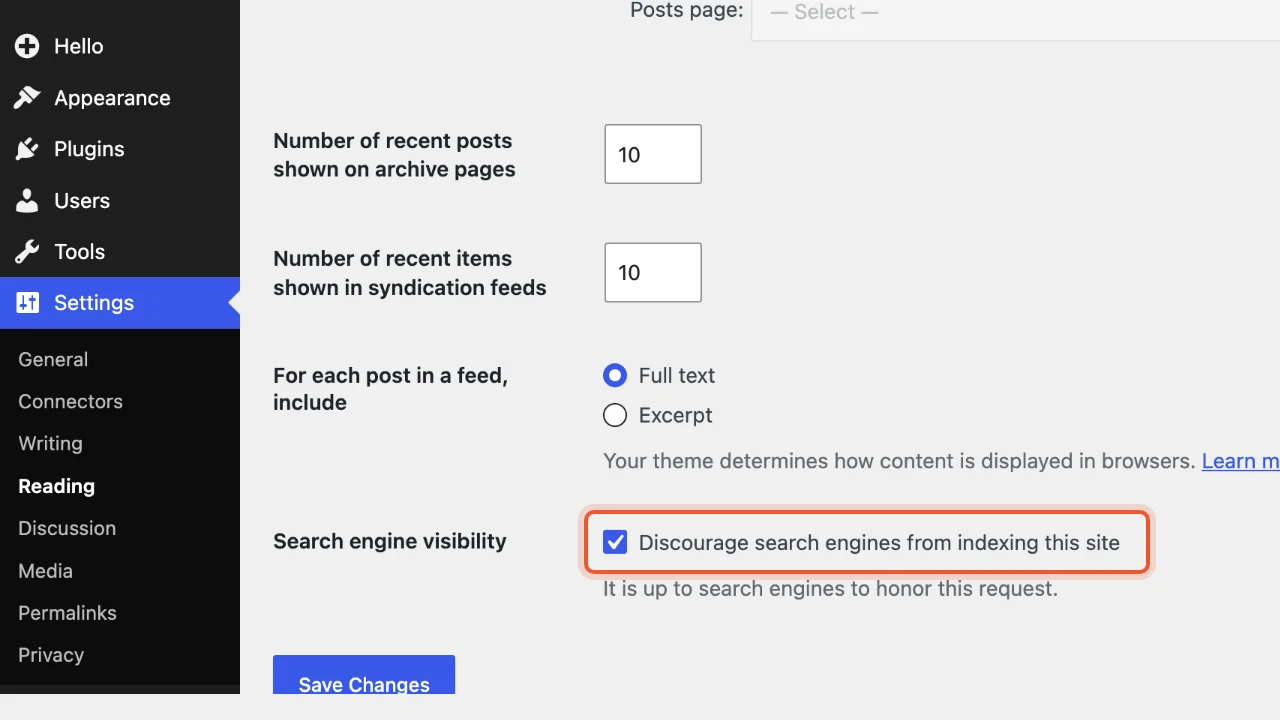
A WordPress checkbox under Settings › Reading asks search engines to leave the site out of results. Teams tick it on staging, the private copy where they build, and forget it at launch.
To see what it does, we tested a local WordPress 7.1.5 site with the Hello Elementor theme, Elementor and no SEO plugin. We saved its homepage HTML and robots.txt with curl, once with the box unticked and once ticked.
| What we checked | Box unticked | Box ticked |
|---|---|---|
| Robots meta tag on the homepage | <meta name='robots' content='max-image-preview:large' /> | <meta name='robots' content='noindex, nofollow' /> |
| robots.txt rules | Disallow /wp-admin/, allow admin-ajax.php | The same rules |
| Sitemap line in robots.txt | Present | Removed |
| /wp-sitemap.xml | Loads | Returns 404 |
Robots.txt is the file that tells search bots which pages they may visit. With the box ticked, it still lets Google visit every page. Google then reads the noindex tag (“leave this page out of search”) and drops your pages. The only sign in robots.txt is the missing Sitemap line.
To avoid it, put the checkbox on your launch list. After launch, search the source code of a few live pages for “noindex”, and check robots.txt for the Sitemap line. SEO plugins such as Yoast replace WordPress’s tag, so search for the word, not the exact tag.
4. Using robots.txt in place of noindex, or blocking CSS and JavaScript
Some teams block staging with Disallow: / in robots.txt instead. In our test, that left the page with no noindex tag.
But robots.txt isn’t a way to keep a page out of Google. Google can’t open a blocked page, so it never sees the noindex rule. The page can still show in results if other sites link to it (Google on noindex).
If that file goes live, Google stops visiting your whole site. Blocking only CSS or JavaScript files does quieter damage: Google won’t run blocked scripts, so it may miss what visitors see.
To avoid it, keep staging out of Google with a password or noindex, never robots.txt alone. Compare the new robots.txt with the old one before launch.
5. Cutting pages and content with no plan
Remove old pages by what they earn, not how they look. An old blog post can still bring in search traffic or links.
To avoid it, check traffic, links and conversions for every page before you cut it. Merge weak pages into stronger ones and redirect them. A page you delete and don’t replace should return a 404 or 410 error, which tells Google it’s gone.
6. Losing titles, meta descriptions, schema and alt text
Titles and meta descriptions are what people see in Google’s results. Schema labels each page for Google, and alt text describes each image. They live in SEO settings, the theme, custom fields and the media library. A new theme can drop them, and nobody notices because the pages still look fine.
To avoid it, run a crawler, a tool that visits every page like Google does, on the old site. Export the titles, meta descriptions, canonical tags (which tell Google a page’s main URL), structured data and alt text. Then crawl staging the same way and compare the two before launch.
7. Breaking internal links and pages with backlinks
Teams rebuild the menus, but links inside old content still point at old URLs, through a redirect or to a 404. Pages with backlinks, links from other sites, matter even more, because they carry trust.
To avoid it, update internal links (links between your own pages) as soon as the move starts, as Google advises. Then check that each page on your SEO tool’s backlink list loads.
8. Losing analytics and conversion tracking at launch
If tracking breaks at launch, you can’t tell a real drop from a gap in your data. Tags get left out of the new theme, form IDs change and thank-you pages move.
To avoid it, list every tag, event and goal before the build starts. Test each one on staging, then again on the live site on launch day.
9. Content that only appears with JavaScript
Some themes and widgets add content with JavaScript after the page loads. Google runs JavaScript only in a later step, after pages wait in a queue (JavaScript SEO basics). Not all bots run JavaScript either, so text or links added by scripts can be missed.
To avoid it, open View Source on a few staging pages, which shows the code before scripts run, not the browser inspector. Check that your main text and links are there. WordPress builds pages on the server by default, so the risk comes mostly from heavy page builders and script-driven widgets.
10. Moving domain or host in the same launch as the redesign
A new domain or host is a site move of its own, so change one thing at a time. If everything changes in one launch and rankings dip, you can’t tell which change caused it.
To avoid it, move domain or host in a separate launch, before or after the redesign. For a move, our WordPress migration team maps and tests every redirect before launch. The process below gives each mistake an owner and a check.
The website redesign SEO process, step by step
SEO work belongs in every stage of a redesign. A full redesign with a new custom theme typically takes 6 to 12 weeks. We follow the same five stages each time: Discover, Strategy, Design and build, Launch and Support.
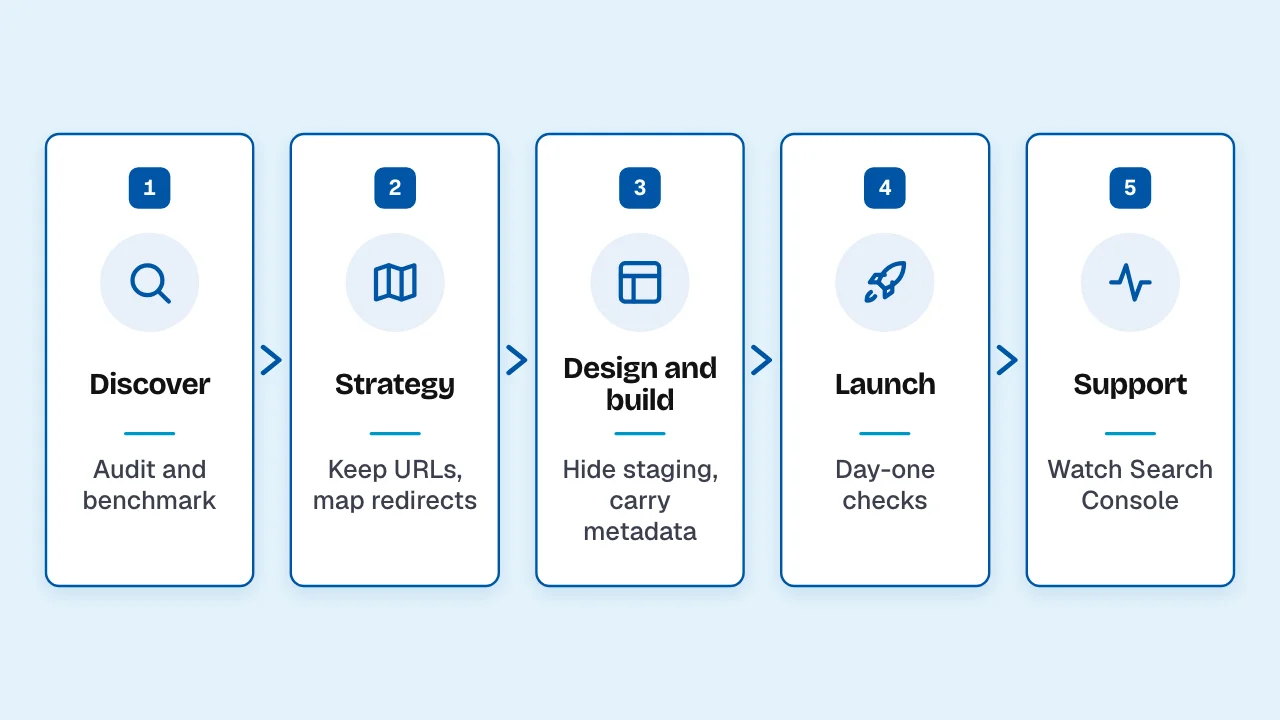
Discover: run a website redesign SEO audit
The audit records what your site earns now, so you can protect it and measure growth later. Record rankings, search traffic and conversions for your key pages, to compare after launch. Then list every URL that earns something.
- Pages with search traffic, from Google Search Console (Google’s free tool for site owners) and your analytics
- Pages with links from other sites, from your SEO tool
- Pages that bring in leads or sales
- Every URL in the old sitemap and a full site crawl
This list feeds the redirect map in the next stage.
Strategy: keep URLs, and map the rest
By default, keep each URL that works. Every URL that changes goes into one redirect map: old URL, new URL, redirect type (such as 301) and reason.
Each row sends the old URL to the closest new page in one 301 hop (mistakes 1 and 2). Mark pages you’re retiring, so nobody points them at the homepage (mistake 5). After launch, add a row whenever someone changes a URL.
From our projects
For Bowlus, we moved the blog to one /blog/ path, with a redirect from each old URL to its new address. We also consolidated a sitemap of more than 120 pages and added 59 redirect rules for old pages. We fixed 24 canonical tag problems too.
Planning a redesign and want to grow your rankings?
We’ll review your current site, the pages that earn traffic and links, and what a redesign should protect.
Design and build: keep staging out of Google
While you build, protect your staging site with a password or a noindex tag (mistake 4). Write down how you blocked it, so you know what to remove at launch.
Carry over the titles, descriptions and other details from mistake 6 as each template is built. Test your tracking on staging too (mistake 8).
Launch: run the day-one checks
Most of the mistakes above happen or get caught on launch day. Run this website redesign SEO checklist in the first hour after the new site goes live. You only need Google’s Change of Address tool if your domain changes (see the FAQ).
- “Discourage search engines” unticked, and no noindex in the page source
- robots.txt checked against the approved version
- Redirects tested: one 301 hop to the right page
- XML sitemap live and submitted in Search Console
- Titles, meta descriptions and canonical tags present
- Structured data validates
- Analytics and conversion events firing
- Internal links pointing at final URLs
- 404 errors monitored in Search Console
- PageSpeed Insights and Core Web Vitals baseline captured
Support: watch the first weeks
Each week after launch, check the Search Console Page indexing and Sitemaps reports, which show the pages Google includes and leaves out. Compare rankings, traffic and conversions with your audit numbers. Keep your redirects for at least a year, as Google recommends.
Website redesign best practices that grow search and AI visibility
Avoiding the mistakes protects what you have. In our expert opinion, growth comes from a clean rebuild that follows five practices.
Keep the content and URLs that already earn traffic
Change the look freely: layout, colors, navigation and templates. Protect the pages, content and URLs that bring in traffic, links and leads. Google already knows what those pages are about, and other sites link to their address.
Let your audit decide what else changes. Fix what the numbers show is broken, such as pages that rank but don’t convert, a confusing menu or messy URLs. Pages that work keep their content and address, with a better look.
Build with semantic HTML that works without JavaScript
Semantic HTML means coding each part of a page as what it is. A heading is a real heading, a list is a real list, and the main content sits inside a <main> tag.
Search engines, AI tools and screen readers (apps that read pages aloud) use this structure to understand the page. When a theme builds everything from generic boxes, they have to guess.
A redesign is the easiest time to fix this, because every template is rebuilt anyway. Check three things in the new templates:
- One h1 per page, then h2 and h3 in order, with no skipped levels
- Landmarks, the tags that mark the header, navigation, main content and footer, so people and tools can jump to each area
- Real lists and tables for lists and data, not styled boxes
Most sites miss at least one: the WebAIM Million 2026 study found that 41.8% of popular home pages skipped heading levels.
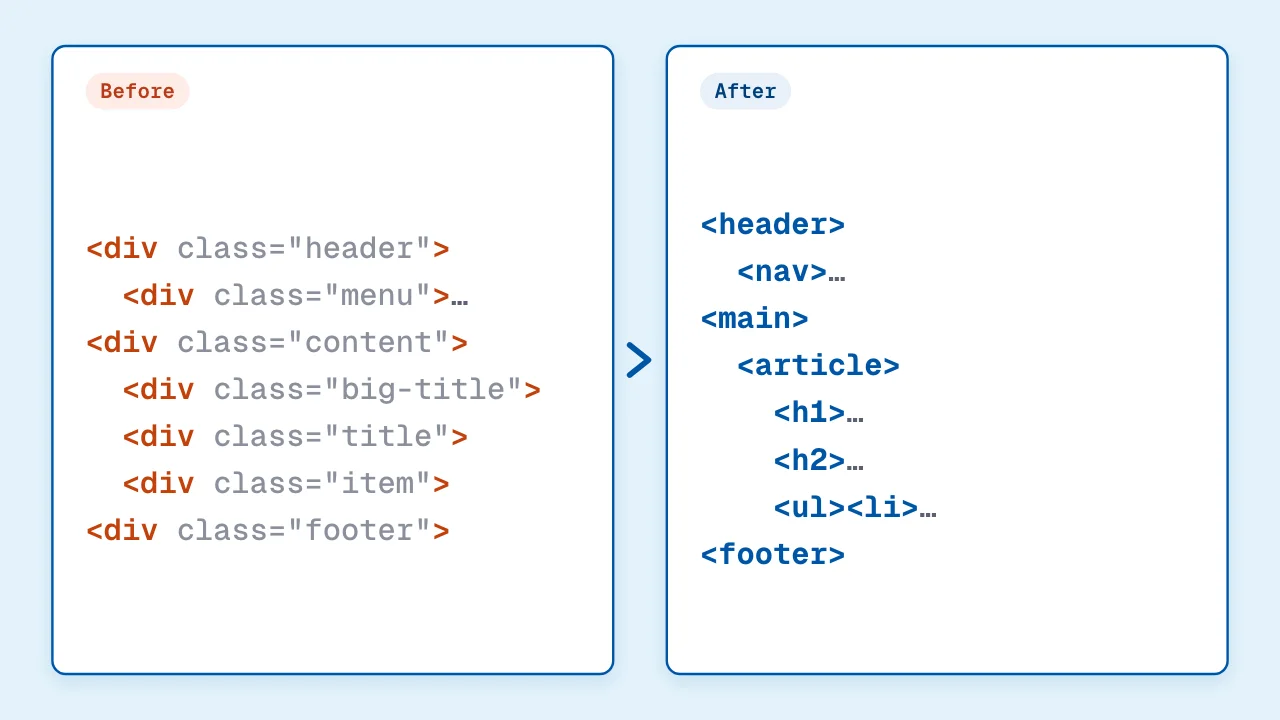
| Element | What it tells Google, AI tools and screen readers |
|---|---|
<header> | This is the site’s top area, with the logo and branding |
<nav> | These are navigation links, not page content |
<main> | The main content starts here, so screen reader users can jump straight to it |
<article> | This is a complete piece, such as a post, that makes sense on its own |
<h1>, <h2> | The page’s topic, then the topic of each section, in order |
<ul>, <table> | These items belong together, or this data has real rows, columns and headers |
Fix it once in the templates, and every new page gets the same structure. Keep the main content in the code your server sends (mistake 9).
Add structured data that matches the page
Structured data, also called schema, is a small block of code, usually JSON-LD, that labels what a page is. That might be an article with its author and date, a service, a product or your organization. It helps Google understand the page and show it correctly.
During the rebuild, build the markup into the templates, so every page gets it automatically.
- Article markup on posts, with the author and dates
- Organization and breadcrumb markup across the site
- Service or product markup where it fits
Keep it as one connected block of markup per page. Then test each template in Google’s Rich Results Test before launch (mistake 6).
Make sure the markup matches the text people can see. AI Overviews and AI Mode need no special optimization, AI text files or special markup (Google on AI features). A page gets into AI answers the same way as into search. It must be indexed (stored in Google’s list of pages it can show), allowed a snippet and clear about what it covers.
Improve page speed, accessibility and SEO metrics
A redesign rebuilds every template, so it’s the best time to get speed and accessibility right instead of patching them later.
For speed, set limits before design starts. Agree how many fonts and scripts a page may load and how large the main image can be, then build to them. In our experience, redesigns slow down through large images, extra fonts and outside scripts added late.
For accessibility, build it into the templates. Every block needs clear color contrast, form labels, an alt text field and a visible outline for keyboard users. Editors then can’t publish an inaccessible page by accident, and theme errors are fixed everywhere at once.
Then measure the same key pages before and after launch. For speed, check Core Web Vitals for real visitors in PageSpeed Insights. Core Web Vitals are Google’s scores for how fast a page loads, responds and stays steady. For accessibility, use Lighthouse (built into Chrome) plus a keyboard test.
Only 48% of mobile sites had good Core Web Vitals in 2025 (Web Almanac 2025 performance chapter). After the Bowlus rebuild, the main content appeared in 1.3 seconds, and nothing shifted while the page loaded.
Rebuild with WordPress blocks so the next redesign is a design change, not a site move
The theme build decides how much code every page carries. In a speed test, we built the same content three ways. The Elementor page loaded 121 KB of JavaScript, but our custom block theme loaded only 7 KB. Less code usually means faster pages and cleaner code for Google (see the test in our slow-site guide).
A custom WordPress theme built from reusable blocks also keeps the design apart from your content. Your team edits sections without breaking the layout. For a new look later, you change the blocks and styles without touching your URLs. Redirects and robots rules sit in one place your team can update safely.
These five practices match the five principles we build every site on.
| Principle | What a careless redesign breaks | Signal to check |
|---|---|---|
| Search & AI Visible | URLs, titles and schema, or noindex left on | Indexed pages hold steady in Search Console |
| Accessible | Headings, form labels and contrast | Fewer automated WCAG errors per page |
| High Speed | Page weight, as builder code and scripts pile up | Core Web Vitals pass for real visitors |
| Scalable | Consistency, with a one-off add-on for each need | New pages built from existing blocks |
| Editable | Layouts editors are afraid to touch | Editors publish without a developer |
Rankings dropped after a redesign? Check these in order
If rankings dropped after a redesign, check indexing, robots.txt and redirects first. A mistake in any of them can drop every page at once. Each one takes minutes to check.
If you relaunched recently and see a small dip, that’s normal. Rankings move while Google revisits your pages, so don’t make big changes in a panic. Look closer if pages vanish from Google, key pages drop sharply or 404 errors keep rising. The checks below cover each one.
- Indexing: noindex in the page source, or the Settings › Reading box ticked.
- robots.txt: compare it with the old version.
- Redirects: one 301 hop from your most valuable old URLs to the right pages.
- Search Console: new 404 and soft 404 errors, and pages left out by noindex, in the Page indexing report.
- Content and metadata: top pages compared with their old versions.
- Internal links and canonicals: any that point at old, staging or redirected URLs.
- Tracking: check the drop shows in Search Console too, not only in your analytics.
If all seven pass, give Google time to finish re-reading your pages. If a drop lasts more than a few weeks, crawl the whole site and run the list again.
Who should run your website redesign?
Choose a team where design, development and SEO work as one. Problems start in the gaps: designers change layouts, developers change URLs, and SEO gets left until launch week. SEO for a website redesign has to start in discovery, so ask any team these questions.
- Who owns the redirect map, and can we see one from a past project?
- How will you keep staging out of Google, and what do you check on launch day?
- How do you carry over titles, structured data and tracking?
- What do you monitor after launch, and for how long?
- Can our team edit pages afterwards without a developer?
Our WordPress redesign service starts with an audit, and the same team supports your site after launch. For budgeting, see our guide to website redesign cost.
Conclusion
A redesign loses rankings when the project skips the SEO work, not because the design changed.
Audit what the site earns, keep the URLs that work and map the rest. Keep staging out of Google, check everything on launch day, then watch Search Console until rankings settle.
A clean block rebuild gives every page better code and speed. Your next redesign can then change the look without touching your URLs.